This is the first post in a series where I work my way into the Google Cloud Platform and document it as I go — learning in public. If something here is wrong or outdated, tell me and I will fix it.
We start with load balancing, because that is where most GCP beginners hit their first wall of vocabulary: target pools, URL maps, forwarding rules, backend services, target proxies. Five nouns, none of which explain themselves.
By the end of this post you will have built two different load balancers with the gcloud CLI and, more importantly, you will know which box does what.
Cost warning: the resources in this post are not covered by the Google Cloud Free Tier. Two
e2-mediumVMs, threee2-smallVMs, a global IP address and two forwarding rules cost real money per hour. The cleanup section at the end deletes everything again. Do not skip it.
Prerequisites
You need the gcloud CLI and a GCP project with billing enabled.
Install the gcloud CLI
Linux:
# Debian / Ubuntu — add Google's package repository
sudo apt-get update && sudo apt-get install -y apt-transport-https ca-certificates gnupg curl

curl https://packages.cloud.google.com/apt/doc/apt-key.gpg \
  | sudo gpg --dearmor -o /usr/share/keyrings/cloud.google.gpg

echo "deb [signed-by=/usr/share/keyrings/cloud.google.gpg] https://packages.cloud.google.com/apt cloud-sdk main" \
  | sudo tee /etc/apt/sources.list.d/google-cloud-sdk.list

sudo apt-get update && sudo apt-get install -y google-cloud-cli
Windows (PowerShell):
# Requires PowerShell 5.1+; PowerShell 7 recommended
winget install --id Google.CloudSDK -e
If winget is unavailable, download the installer from the gcloud CLI install docs. PowerShell 7 setup is covered in Upgrade to PowerShell 7.
Authenticate and pick a project
The gcloud syntax is identical on every platform. Only shell-specific things — line continuations, loops, variables — differ, so a command appears once unless the two shells actually need different code. Where they do, both variants follow each other.
gcloud init
gcloud auth login
gcloud config set project YOUR_PROJECT_ID
No local install wanted? Cloud Shell gives you a browser terminal with gcloud preinstalled and authenticated. Every command in this post runs there unchanged.
First: which load balancer are we even talking about?
Google Cloud does not have “a” load balancer. It has a family of them, and they differ along two axes: which OSI layer they operate on and whether they are regional or global.
| Network Load Balancer | Application Load Balancer | |
|---|---|---|
| OSI layer | Layer 4 (TCP/UDP) | Layer 7 (HTTP/HTTPS) |
| Sees | IP addresses, ports | URLs, headers, cookies |
| Scope in this post | Regional | Global |
| Routing decisions | By connection | By request content |
| Terminates the connection? | No (passthrough) | Yes (proxy) |
Layer 4 and Layer 7 refer to the OSI reference model (ISO/IEC 7498-1). The practical difference:
- A Layer 4 balancer forwards packets. It knows “TCP connection to port 80” and picks a backend. It never reads the HTTP request. TCP itself is specified in RFC 9293.
- A Layer 7 balancer terminates the client connection, parses the HTTP request per RFC 9110, and can route
/api/*to one backend and/images/*to another.
We build one of each. Google’s full load balancing overview lists the remaining variants.
Setting defaults
Before creating anything, tell gcloud where to work. This saves repeating --region and --zone on every command.
gcloud config set compute/region us-east1
gcloud config set compute/zone us-east1-d
- Region (
us-east1) — a geographic area, roughly “US East Coast”. - Zone (
us-east1-d) — one isolated datacenter inside that region.
A zone is a failure domain: if it goes down, everything in it goes down with it. Spreading instances across zones is how you survive that. See Regions and zones.
I keep the explicit --zone / --region flags in the commands below anyway, so each one can be copy-pasted on its own.
Part 1: A regional Network Load Balancer
The external passthrough Network Load Balancer accepts traffic on a public IP and forwards it to backends without modifying it. Your web server sees the client’s original IP address, not the balancer’s — that is what “passthrough” means.
Step 1 — Create three web servers
gcloud compute instances create web1 \
    --zone=us-east1-d \
    --tags=network-lb-tag \
    --machine-type=e2-small \
    --image-family=debian-12 \
    --image-project=debian-cloud \
    --metadata=startup-script='#!/bin/bash
      apt-get update
      apt-get install apache2 -y
      service apache2 restart
      echo "<h3>Web Server: web1</h3>" | tee /var/www/html/index.html'
Repeat for web2 and web3, changing the instance name in both the command and the echo line.
What each flag does:
--machine-type=e2-small— a small, cheap machine type. Two vCPUs (shared), 2 GB RAM. Plenty for an Apache serving one HTML file.--image-family=debian-12— the OS. Using a family instead of a specific image name always gives you the newest patched build of Debian 12. See public images.--tags=network-lb-tag— a network tag. Think of it as a sticky note on the VM. Firewall rules target tags, not individual machines, so “allow port 80 to everything wearing this tag” keeps working as you add and remove instances.--metadata=startup-script=...— the script Compute Engine runs on first boot, as root. This is how you avoid ever SSH-ing into the machine to configure it. See startup scripts.
On Windows: multi-line single-quoted strings do not survive PowerShell. Put the script in a file and pass it with --metadata-from-file instead — which is the cleaner approach on Linux too, once the script grows past three lines.
# startup.sh (LF line endings! CRLF will break the shebang)
@'
#!/bin/bash
apt-get update
apt-get install apache2 -y
service apache2 restart
echo "<h3>Web Server: $(hostname)</h3>" | tee /var/www/html/index.html
'@ -replace "`r`n", "`n" | Set-Content -Path startup.sh -NoNewline

gcloud compute instances create web1 `
    --zone=us-east1-d `
    --tags=network-lb-tag `
    --machine-type=e2-small `
    --image-family=debian-12 `
    --image-project=debian-cloud `
    --metadata-from-file=startup-script=startup.sh
The backtick ` is PowerShell’s line continuation character, equivalent to \ in bash.
Step 2 — Allow HTTP traffic
The VMs exist but nothing can reach them. GCP’s default VPC firewall denies all inbound traffic. Open port 80 for the tagged instances:
gcloud compute firewall-rules create www-firewall-network-lb \
    --target-tags network-lb-tag \
    --allow tcp:80
This is the same default-deny principle covered in Ubuntu Server Hardening — Part 1, just enforced one layer up, in the VPC firewall rather than on the host.
Verify the instances are up and note their external IPs:
gcloud compute instances list
Then request one of them directly:
curl http://EXTERNAL_IP_OF_WEB1
Invoke-RestMethod -Uri "http://EXTERNAL_IP_OF_WEB1"
Step 3 — Build the load balancer
Four resources, created in dependency order:
# 1. Reserve a static regional IP address
gcloud compute addresses create network-lb-ip-1 \
    --region=us-east1

# 2. Create a health check
gcloud compute http-health-checks create basic-check

# 3. Create a target pool — the group of backends
gcloud compute target-pools create www-pool \
    --region=us-east1 \
    --http-health-check=basic-check

# 4. Put the three instances into the pool
gcloud compute target-pools add-instances www-pool \
    --instances=web1,web2,web3 \
    --instances-zone=us-east1-d

# 5. Forwarding rule — binds the IP and port to the pool
gcloud compute forwarding-rules create www-rule \
    --region=us-east1 \
    --ports=80 \
    --address=network-lb-ip-1 \
    --target-pool=www-pool
The health check is the part people skip and then regret. The balancer probes every backend on a fixed interval. A backend that fails the probe stops receiving traffic until it recovers — automatically, with no alert firing at 3 a.m. Details: health check concepts.
A target pool is the legacy backend type for this balancer. It still works and it is what most tutorials show, but Google now recommends backend-service-based Network Load Balancers for new deployments — they support more protocols and share the configuration model with the Application Load Balancer we build next. Worth knowing before you copy a target pool into production.
Step 4 — Watch it distribute
IP=$(gcloud compute forwarding-rules describe www-rule \
    --region=us-east1 --format="value(IPAddress)")

while true; do curl -s -m 2 "http://$IP"; sleep 1; done
$ip = gcloud compute forwarding-rules describe www-rule `
    --region=us-east1 --format="value(IPAddress)"

while ($true) {
    (Invoke-WebRequest -Uri "http://$ip" -TimeoutSec 2).Content
    Start-Sleep -Seconds 1
}
The output cycles between web1, web2 and web3. Stop it with Ctrl+C.
Not strictly round-robin, by the way: this balancer hashes a 5-tuple of source IP, source port, destination IP, destination port and protocol to pick a backend. Same connection, same backend. That is why refreshing in a browser often sticks to one server while curl — new source port each time — jumps around.
Part 2: A global Application Load Balancer
Now the Layer 7 variant. The global external Application Load Balancer runs on Google’s edge network: one IP address, announced worldwide via anycast, and users are served from the point of presence closest to them.
Step 1 — An instance template
Instead of creating VMs one by one, define a blueprint.
gcloud compute instance-templates create lb-backend-template \
    --machine-type=e2-medium \
    --image-family=debian-12 \
    --image-project=debian-cloud \
    --tags=allow-health-check \
    --metadata=startup-script='#!/bin/bash
      apt-get update
      apt-get install apache2 -y
      a2ensite default-ssl
      a2enmod ssl
      vm_hostname="$(curl -H "Metadata-Flavor:Google" \
        http://169.254.169.254/computeMetadata/v1/instance/name)"
      echo "Page served from: $vm_hostname" | tee /var/www/html/index.html
      systemctl restart apache2'
Note how the hostname is obtained: 169.254.169.254 is the metadata server, a link-local address (RFC 3927) reachable from inside every GCE instance. It answers questions about the VM it is running on — name, zone, project, service account tokens. The Metadata-Flavor: Google header is mandatory; it exists to make the endpoint immune to naive cross-site request forgery.
An instance template is immutable. To change it, you create a new one — which is exactly what you want for reproducible infrastructure.
Now create a Managed Instance Group (MIG) from it:
gcloud compute instance-groups managed create lb-backend-group \
    --template=lb-backend-template \
    --size=2 \
    --zone=us-east1-d
A MIG maintains the requested instance count. Delete a VM by hand and the group recreates it. Set --size=50 and it builds 48 more. Attach an autoscaler and it adjusts the count to load on its own.
Step 2 — Firewall for Google’s health checkers
gcloud compute firewall-rules create fw-allow-health-check \
    --network=default \
    --action=allow \
    --direction=ingress \
    --source-ranges=130.211.0.0/22,35.191.0.0/16 \
    --target-tags=allow-health-check \
    --rules=tcp:80
Those two CIDR ranges are Google’s health check probers. They are documented, fixed, and the same in every project — see probe IP ranges and firewall rules. Traffic from the global Application Load Balancer to your backends also originates from these ranges, so this one rule covers both.
Forgetting this rule is the single most common reason a freshly built Application Load Balancer returns 502 Server Error: the backends are fine, but every health probe is dropped, so the balancer considers them all dead.
Step 3 — Assemble the balancer
Six resources, each pointing at the previous one:
# 1. Reserve a global IP address
gcloud compute addresses create lb-ipv4-1 \
    --ip-version=IPV4 \
    --global

# 2. Health check
gcloud compute health-checks create http http-basic-check \
    --port=80

# 3. Backend service — the routing target
gcloud compute backend-services create web-backend-service \
    --protocol=HTTP \
    --port-name=http \
    --health-checks=http-basic-check \
    --global

# 4. Attach the instance group as a backend
gcloud compute backend-services add-backend web-backend-service \
    --instance-group=lb-backend-group \
    --instance-group-zone=us-east1-d \
    --global

# 5. URL map — the routing table
gcloud compute url-maps create web-map-http \
    --default-service=web-backend-service

# 6. Target HTTP proxy — terminates client connections
gcloud compute target-http-proxies create http-lb-proxy \
    --url-map=web-map-http

# 7. Forwarding rule — binds the global IP to the proxy
gcloud compute forwarding-rules create http-content-rule \
    --address=lb-ipv4-1 \
    --global \
    --target-http-proxy=http-lb-proxy \
    --ports=80
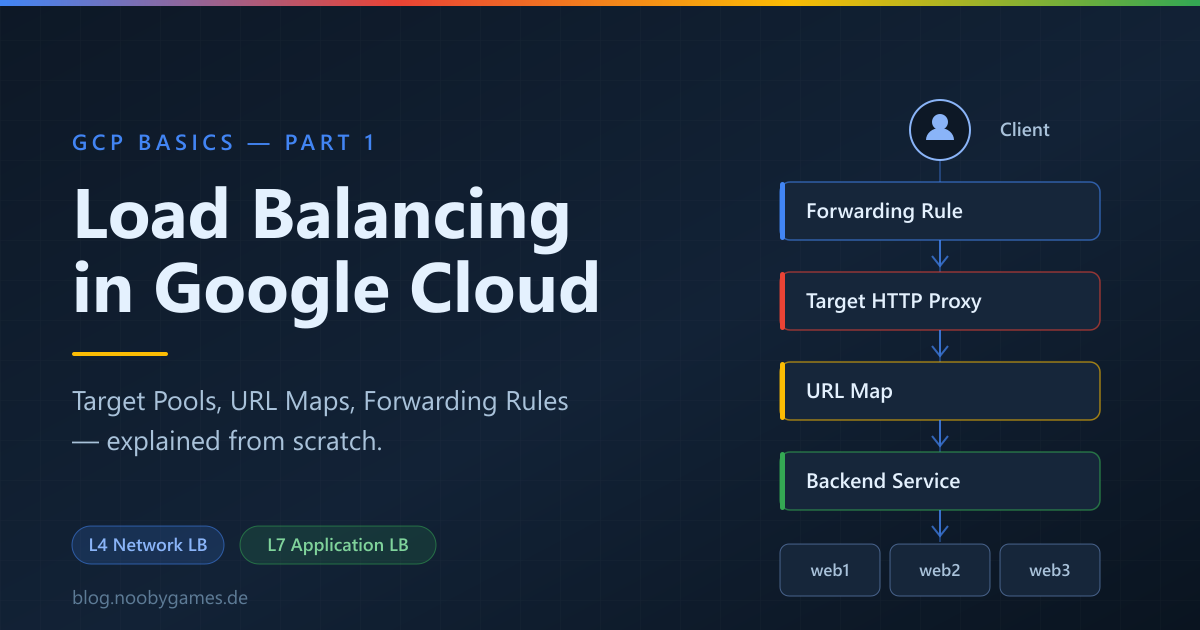
How a request travels
Each box has exactly one job, and each is independently replaceable. That is the whole design:
- The forwarding rule owns the IP and port.
- The target proxy terminates the client connection and parses HTTP.
- The URL map decides which backend service handles this path. Right now every path goes to
--default-service, but this is where/api/*and/static/*would split. See URL map concepts. - The backend service holds the policy: balancing mode, session affinity, timeouts, health checks.
- The instance group provides the actual VMs.
Want HTTPS instead? Swap step 6 for a target-https-proxies with an SSL certificate attached. Nothing else in the chain changes.
Test it
Getting the IP is instant. The balancer working is not — propagating a global forwarding rule across Google’s edge takes several minutes, and 404 or 502 responses during that window are normal.
gcloud compute forwarding-rules describe http-content-rule --global --format="value(IPAddress)"
Open http://IP_ADDRESS in a browser. You should see Page served from: lb-backend-group-xxxx. Reload a few times to see the hostname change.
Cleanup — do not skip this
Load balancers, static IPs and VMs bill by the hour whether you use them or not. Delete in reverse dependency order — GCP refuses to delete a resource that something else still points at.
# Global Application Load Balancer
gcloud compute forwarding-rules delete http-content-rule --global --quiet
gcloud compute target-http-proxies delete http-lb-proxy --quiet
gcloud compute url-maps delete web-map-http --quiet
gcloud compute backend-services delete web-backend-service --global --quiet
gcloud compute health-checks delete http-basic-check --quiet
gcloud compute instance-groups managed delete lb-backend-group --zone=us-east1-d --quiet
gcloud compute instance-templates delete lb-backend-template --quiet
gcloud compute addresses delete lb-ipv4-1 --global --quiet
gcloud compute firewall-rules delete fw-allow-health-check --quiet

# Regional Network Load Balancer
gcloud compute forwarding-rules delete www-rule --region=us-east1 --quiet
gcloud compute target-pools delete www-pool --region=us-east1 --quiet
gcloud compute http-health-checks delete basic-check --quiet
gcloud compute addresses delete network-lb-ip-1 --region=us-east1 --quiet
gcloud compute firewall-rules delete www-firewall-network-lb --quiet
gcloud compute instances delete web1 web2 web3 --zone=us-east1-d --quiet
Then confirm nothing is left:
gcloud compute instances list
gcloud compute forwarding-rules list
gcloud compute addresses list
A reserved static IP that is not attached to anything is billed more than an attached one — Google charges for hoarding scarce addresses. Check gcloud compute addresses list after every experiment.
Takeaways
- Layer 4 forwards, Layer 7 understands. Pick the Network Load Balancer for raw TCP/UDP throughput and client-IP preservation; pick the Application Load Balancer when routing depends on the request itself.
- The chain is always the same: IP → forwarding rule → (proxy → URL map) → backend → instances. Once you see that chain, every
gcloud computecommand has an obvious place in it. - Health checks are not optional. Without the right firewall rule for
130.211.0.0/22and35.191.0.0/16, every backend looks dead and you get502s. - Delete what you build. Idle load balancers are one of the most reliable ways to be surprised by a cloud bill.
Doing this by hand is the right way to learn it. It is the wrong way to run it — the next steps are Terraform or the Config Connector, so infrastructure lives in version control instead of in shell history.
Next up in this series: what happens when two VMs are not enough — autoscaling and health-based instance replacement in Managed Instance Groups.
Sources
- Cloud Load Balancing overview — Google Cloud docs
- External passthrough Network Load Balancer — Google Cloud docs
- Global external Application Load Balancer — Google Cloud docs
- Health check concepts — Google Cloud docs
- Instance groups — Google Cloud docs
- gcloud compute reference — Google Cloud docs
- RFC 9110 — HTTP Semantics
- RFC 9293 — Transmission Control Protocol
- RFC 3927 — Dynamic Configuration of IPv4 Link-Local Addresses