What is Hugo?
Hugo is a static site generator that offers several benefits for building fast and secure websites.
It has a fast build time, making it ideal for generating large sites quickly. Its intuitive interface and straightforward directory structure make it easy for users to get started with Hugo.
Additionally, Hugo provides flexibility through templates, shortcodes, and custom output formats, and can be easily deployed to a variety of hosting platforms.
It is also well-suited for handling large sites and is more secure than dynamic sites because it generates static HTML files. Overall, Hugo is a popular choice for developers and content creators looking to build efficient and secure websites.
Why should u use Hugo?
Speed: Hugo is designed to be fast, with a build time of milliseconds for sites with thousands of pages. This makes it ideal for generating large sites quickly. Also having static HTML files often lead to blazingly fast loading times, which lead to good PageSpeedInsights scores.
Ease of use: Hugo has a simple and intuitive interface, with a straightforward directory structure and Markdown-based content files. This makes it easy for new users to get started with Hugo.
Flexibility: Hugo allows you to customize your site with templates, shortcodes, and custom output formats. This makes it easy to build a site that fits your specific needs.
Portability: Hugo sites can be easily deployed to a variety of hosting platforms, including GitHub Pages, Amazon S3, and Netlify. This makes it easy to host your site wherever you prefer.
Scalability: Hugo is designed to handle large sites with ease, making it easy to scale your site as it grows.
Security: Hugo generates static HTML files, which means that there are no dynamic elements or database queries. This makes Hugo sites more secure and less vulnerable to attacks.
Install Hugo
To ensure you have the full functionality, especially if your theme uses Sass/SCSS, it’s recommended to install the Hugo Extended version.
Install on Windows (Recommended)
The easiest way to install Hugo Extended on Windows is using Winget (Windows Package Manager), which is built into modern Windows 10/11.
Open PowerShell or Command Prompt as an administrator.
Run the following command:
winget install Hugo.Hugo.ExtendedRestart your terminal to ensure the new PATH is loaded.
Install on Linux
For Debian-based systems (like Ubuntu):
Download the latest Hugo Extended
.debfile from the Hugo Releases page. Look forhugo_extended_VERSION_linux-amd64.deb.Install it using
dpkg:sudo dpkg -i /path/to/hugo_extended_VERSION_linux-amd64.deb
For other Linux distributions, you can download the tarball:
Download the
hugo_extended_VERSION_linux-amd64.tar.gzfrom the Hugo Releases page.Extract it and move the executable to your PATH:
tar -xf hugo_extended_VERSION_linux-amd64.tar.gz
sudo mv hugo /usr/local/bin/
Verify Installation
After installation, open your terminal and run:
hugo version
You should see the installed Hugo version, e.g., hugo v0.124.1+extended.
Use Docker
Instead of installing Hugo locally on your machine, you can use a Docker container.
Example:
FROM alpine:latest as build

ENV HUGO_VERSION 0.124.1

RUN wget https://github.com/gohugoio/hugo/releases/download/v${HUGO_VERSION}/hugo_${HUGO_VERSION}_linux-amd64.tar.gz && \
    tar -xf hugo_${HUGO_VERSION}_linux-amd64.tar.gz && \
    rm hugo_${HUGO_VERSION}_linux-amd64.tar.gz && \
    mv hugo /usr/local/bin/hugo

FROM gcr.io/distroless/static:nonroot
USER nonroot

COPY --from=build /usr/local/bin/hugo /usr/local/bin/hugo
COPY noobygames.de /site
WORKDIR /site

EXPOSE 80

ENTRYPOINT ["hugo", "server", "-p", "1313", "--bind", "0.0.0.0"]
Now you can build the image using the following commands:
cd your/path/where/the/docker/file/is docker build -t hugo-server .
When the image has successfully been built, you can start the container using the following command:
docker run hugo-server
Create a new website
To create a new website, you simply need to run the following command:
hugo new site example.com
The command is build as follows:
hugo(cli) new (command) site (parameter) siteName (parameter)
This is going to create a new folder structure for your site.
When examining the output of the create command hugo is going to tell you something like the following:
Just a few more steps and you're ready to go:

1. Download a theme into the same-named folder.
   Choose a theme from https://themes.gohugo.io/ or
   create your own with the "hugo new theme <THEMENAME>" command.
2. Perhaps you want to add some content. You can add single files
   with "hugo new <SECTIONNAME>/<FILENAME>.<FORMAT>".
3. Start the built-in live server via "hugo server".

Visit https://gohugo.io/ for quickstart guide and full documentation.
Create a new theme
You can now either download any hugo theme from the world wide web, or create your very own theme. In this tutorial series, we are going create our own theme.
So we use the following command while being inside the site directory:
hugo new theme my-theme
This is going create the complete folder structure for your theme.
Hello World
Before we can finally render something, we have two more things to do.
As a first step, we add the following line to the index.html file that is located in example.com (site directory) -> themes -> my-theme -> layouts -> index.html
{{ .Content }}
This is a template that simply renders the markdown content of a file into html. There is much more to explain about templates, short-codes etc, but for now it is only important, that this is going to put your markdown file content into HTML.
Now we need a content file to render. Use the following command:
hugo new _index.md
That command creates a new file with the given path inside the content directory.
Your file should now look like this:
---
title: ""
date: 2023-01-05T23:13:47+01:00
draft: true
---
title is the title of the page. date is the creation date of the page. draft controls wether this page should be published or not.
Lets add a nice greeting to our first page. You can freely chose any greeting, i go with the classic.
---
title: "My first page"
date: 2023-01-05T23:13:47+01:00
draft: true
---

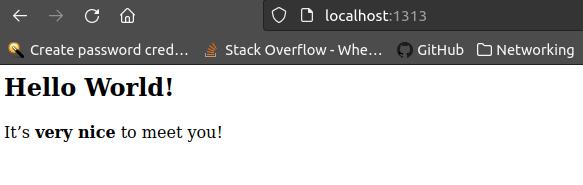
## Hello World!

It's **very nice** to meet you!
We finally have reached the last step. Now we can start a hugo server to see, what we have achieved. Use the following command:
hugo server -D
That command starts a server in development mode, which includes pages that are in draft status. Now visit http://localhost:1313/ in your browser.