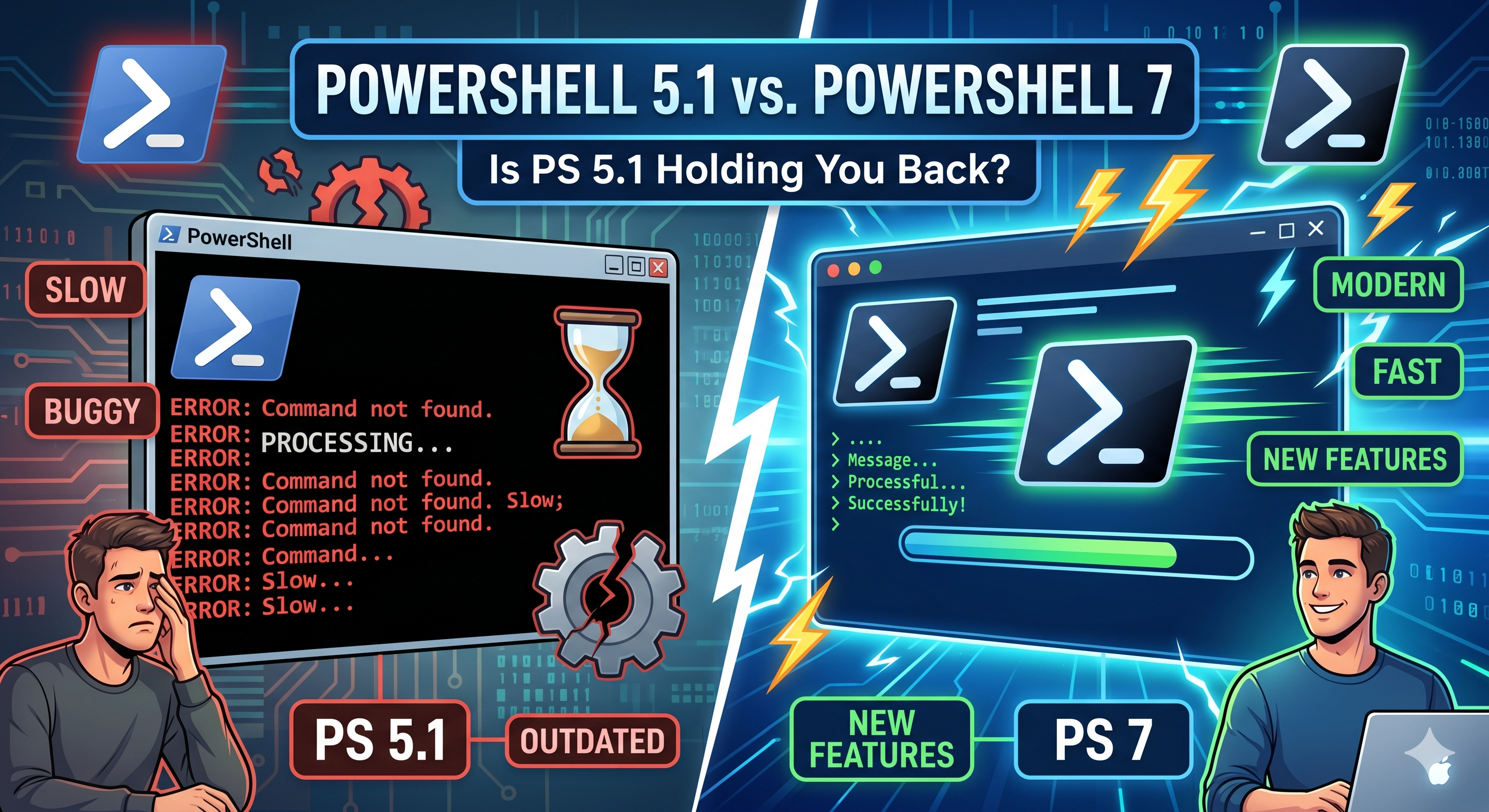
Windows 11 is a modern operating system. Its terminal, however, defaults to a shell from 2016.
When you open PowerShell on a fresh Windows 11 install, you get Windows PowerShell 5.1 — a version built on the old .NET Framework 4.x, permanently frozen in time, and officially in maintenance mode since 2018. Microsoft has not added features to it since then and will not.
I ran into this the hard way when setting up Oh My Posh on a fresh machine — a prompt customization framework that promises beautiful, informative terminal prompts. On PowerShell 5.1, it either threw errors or rendered garbled symbols:
The fix was not tweaking Oh My Posh settings. The fix was switching to PowerShell 7.
Windows PowerShell vs. PowerShell — Two Different Products
Before going further, the naming is genuinely confusing. Microsoft ships two distinct products:
| Windows PowerShell | PowerShell | |
|---|---|---|
| Version | 5.1 (final) | 7.x (actively developed) |
| Runtime | .NET Framework 4.x | .NET 8+ |
| Platform | Windows only | Windows, macOS, Linux |
| Source | Closed | Open source on GitHub |
| Status | Maintenance only | Active development, LTS releases |
| Location | C:\Windows\System32\WindowsPowerShell\v1.0\ | C:\Program Files\PowerShell\7\ |
Windows PowerShell (blue icon, powershell.exe) is a Windows system component and will never be updated beyond 5.1. PowerShell (black icon, pwsh.exe) is the successor — a ground-up rewrite released in 2016 as PowerShell Core 6, renamed to PowerShell 7 when it reached feature parity.
They coexist without conflict. Installing PowerShell 7 does not remove Windows PowerShell 5.1.
What You Actually Get with PowerShell 7
These are the concrete differences you will notice day-to-day.
Pipeline chain operators
PowerShell 7.0 introduced && and || — the operators every developer expects from a shell:
# Run build, then only deploy if it succeeded
npm run build && npm run deploy

# Try the fast path, fall back if it fails
Get-Command pwsh || Write-Host "PowerShell 7 not found"
PowerShell 5.1 has no equivalent. You would need verbose if ($LASTEXITCODE -eq 0) chains.
Ternary operator
$env = $isProd ? "production" : "development"
In 5.1 you need a full if/else block for this.
Null-conditional and null-coalescing operators
# Null-coalescing: use right side if left is null
$config = $userConfig ?? $defaultConfig

# Null-conditional: call method only if object is not null
$length = $str?.Length
Both arrived in PowerShell 7.1 and are absent from 5.1.
Parallel pipeline execution
# Process items in parallel — not possible in 5.1
1..20 | ForEach-Object -Parallel {
    Invoke-RestMethod "https://api.example.com/item/$_"
} -ThrottleLimit 5
ForEach-Object -Parallel ships with PowerShell 7.0 and uses thread-based parallelism without requiring background jobs.
Better error handling
PowerShell 7.2 unified error handling with $ErrorActionPreference = 'Stop' being more consistent and added Get-Error which displays full exception detail with a structured view — far more useful than the truncated stack traces in 5.1.
Modern .NET access
Since PowerShell 7 runs on .NET 8, every .NET 8 API and type is directly accessible:
# JSON with JsonNode — not available on 5.1's .NET Framework 4.x
[System.Text.Json.JsonNode]::Parse('{"key": "value"}')
SSH-based remoting
PowerShell 5.1 remoting requires WinRM (Windows Remote Management), which needs firewall configuration and does not work cross-platform. PowerShell 7 adds SSH-based remoting that works to Linux and macOS hosts out of the box. If you manage Linux servers, securing the SSH daemon should be your first step before enabling remote access from PowerShell.
Built-in ANSI color support and $PSStyle
PowerShell 7.2 introduced $PSStyle — a built-in object that controls all ANSI terminal output. Writing colored output in 5.1 meant manually embedding escape sequences like `e[32m. In PowerShell 7 that is a first-class language feature:
# 5.1 — manually constructing ANSI escape sequences
Write-Host "`e[32mSuccess`e[0m"   # works only in some terminals

# PowerShell 7 — $PSStyle is always available
Write-Host "$($PSStyle.Foreground.Green)Success$($PSStyle.Reset)"

# Named colors, bold, underline, blink — all built-in
$header = $PSStyle.Bold + $PSStyle.Foreground.Cyan
Write-Host "${header}Deployment complete$($PSStyle.Reset)"
$PSStyle also controls how PowerShell itself renders output — list views, errors, and file system entries all use it, and you can customize them:
# Suppress color entirely for CI pipelines
$PSStyle.OutputRendering = [System.Management.Automation.OutputRendering]::PlainText
Cleaner error output
PowerShell 7 ships with ErrorView = 'ConciseView' as the default. Compare the same error in both versions:
5.1 output:
Get-Item : Cannot find path 'C:\does\not\exist' because it does not exist.
At line:1 char:1
+ Get-Item C:\does\not\exist
+ ~~~~~~~~~~~~~~~~~~~~~~~~~~
    + CategoryInfo          : ObjectNotFound: (C:\does\not\exist:String) [Get-Item], ItemNotFoundException
    + FullyQualifiedErrorId : PathNotFound,Microsoft.PowerShell.Commands.GetItemCommand
PowerShell 7 ConciseView:
Get-Item: Cannot find path 'C:\does\not\exist' because it does not exist.
When you need the full detail, Get-Error gives you a structured, navigable view of the last exception — including inner exceptions, type information, and the full stack trace — without the noise of 5.1’s truncated output.
Get-Item C:\does\not\exist
Get-Error   # full structured detail of the last error
Invoke-RestMethod and Invoke-WebRequest upgrades
The HTTP cmdlets in 5.1 were functional but bare. PowerShell 7 added a series of practical improvements:
# Automatic retry with backoff — not available in 5.1
Invoke-RestMethod https://api.example.com/data `
    -MaximumRetryCount 3 `
    -RetryIntervalSec 2

# HTTP/2 support
Invoke-WebRequest https://api.example.com `
    -HttpVersion 2.0

# Response headers as a proper dictionary
$response = Invoke-WebRequest https://api.example.com
$response.Headers["Content-Type"]   # works correctly in PS 7
                                     # returns string[] in PS 5.1

# Skip certificate check for local dev
Invoke-RestMethod https://localhost:5001/api `
    -SkipCertificateCheck
In 5.1, Invoke-RestMethod returned a PSCustomObject for JSON with no way to get a raw hashtable. In PowerShell 7, ConvertFrom-Json gained -AsHashtable:
# 5.1 — PSCustomObject, accessing nested keys is awkward for dynamic data
$data = '{"status": "ok"}' | ConvertFrom-Json
$data.status   # works, but property names must be known at write time

# PowerShell 7 — true hashtable
$data = '{"status": "ok"}' | ConvertFrom-Json -AsHashtable
$data["status"]   # works for any key, including dynamic ones
Join-String — a missing cmdlet that finally exists
PowerShell 5.1 had no built-in way to join pipeline output into a single string. The workaround was ($array -join ", ") or collecting into a variable first. PowerShell 7 ships Join-String:
# Clean, pipeline-native joining
Get-Process | Select-Object -ExpandProperty Name | Join-String -Separator ", "

# With a prefix and suffix per element
Get-ChildItem *.ps1 | Join-String -Property Name -Separator "`n" -OutputPrefix "Scripts:`n"

# Quoted output — useful for generating arguments
"alpha", "beta", "gamma" | Join-String -SingleQuote -Separator ", "
# 'alpha', 'beta', 'gamma'
Syntax highlighting in the console
PowerShell 7 ships a more recent version of PSReadLine with syntax highlighting enabled by default. As you type, keywords, strings, variables, and operators are colored in real time:
# PSReadLine version — check what you have
Get-Module PSReadLine | Select-Object Version

# Enable syntax highlighting (on by default in PS 7, manual in 5.1)
Set-PSReadLineOption -PredictionSource HistoryAndPlugin

# Inline prediction — shows completions in grey as you type (PS 7.2+)
Set-PSReadLineOption -PredictionViewStyle InlineView
PowerShell 5.1 ships with PSReadLine 1.x which has no syntax highlighting. Upgrading PSReadLine in 5.1 is possible but fragile; in PowerShell 7 it is the default experience.
Startup performance
PowerShell 7.2 introduced significant startup time improvements through ahead-of-time (AOT) compilation of the most common code paths. On a typical development machine:
# Measure cold startup time
Measure-Command { pwsh -NoProfile -Command "exit" }
# PowerShell 7.4+: ~150–250 ms

Measure-Command { powershell -NoProfile -Command "exit" }
# Windows PowerShell 5.1: ~400–700 ms
The gap matters most in scripts that spawn subprocesses — for example, CI pipeline steps that call pwsh -File script.ps1 dozens of times. It also makes shell-mode usage (pressing Win+R, typing pwsh, running a quick command) noticeably snappier.
Installing PowerShell 7
Option 1 — winget (recommended)
winget install Microsoft.PowerShell
This installs the latest stable release, currently in the 7.x series. The --id is stable across major versions, so you can also use:
winget upgrade Microsoft.PowerShell
to stay current. The installer adds pwsh to PATH automatically.
Option 2 — Microsoft Store
Search for PowerShell in the Microsoft Store. The Store version auto-updates and requires no elevation.
Option 3 — GitHub releases
Download the MSI installer from the official releases page. Choose PowerShell-7.x.x-win-x64.msi for 64-bit systems.
Verify the installation
pwsh --version
# PowerShell 7.x.x
Setting Up Oh My Posh
With PowerShell 7 installed, Oh My Posh works correctly. Install it via winget:
winget install JanDeLaars.OhMyPosh
Then install a Nerd Font — Oh My Posh uses font ligatures and icons that require a patched font. Cascadia Code NF is a solid choice that Microsoft also ships:
winget install Microsoft.CascadiaCode
Add the Oh My Posh initialization to your PowerShell 7 profile. The profile for pwsh lives at:
$HOME\Documents\PowerShell\Microsoft.PowerShell_profile.ps1
Open it (creating it if needed) with:
New-Item -ItemType File -Path $PROFILE -Force
notepad $PROFILE
Add the following line to the profile:
oh-my-posh init pwsh | Invoke-Expression
To use a specific theme — Oh My Posh ships over 100 built-in themes, stored in:
$env:POSH_THEMES_PATH
# List available themes
Get-ChildItem $env:POSH_THEMES_PATH

# Use a theme
oh-my-posh init pwsh --config "$env:POSH_THEMES_PATH\jandedobbeleer.omp.json" | Invoke-Expression
Restart your terminal. Oh My Posh now renders correctly with icons and powerline segments:
Setting PowerShell 7 as Your Default
Installing pwsh does not change what opens when you press Win+X or click the Terminal taskbar icon. That still opens Windows PowerShell 5.1 by default.
Windows Terminal
Windows Terminal is the recommended terminal host on Windows 11. Open Settings (Ctrl+,) → Startup → Default profile → select PowerShell (the one with the black icon and version 7.x). If you do not see it, click Add a new profile → New empty profile and point the command line to pwsh.exe.
Alternatively, edit settings.json directly (Ctrl+Shift+, in Windows Terminal) and set the defaultProfile GUID to the PowerShell 7 profile’s GUID.
Visual Studio Code
Open Settings → search for terminal.integrated.defaultProfile.windows → set it to PowerShell. VS Code will then use pwsh.exe for all integrated terminal sessions.
Or add it directly to settings.json:
{
  "terminal.integrated.defaultProfile.windows": "PowerShell",
  "terminal.integrated.profiles.windows": {
    "PowerShell": {
      "source": "PowerShell",
      "icon": "terminal-powershell"
    }
  }
}
JetBrains IDEs
In Settings → Tools → Terminal → set Shell path to pwsh.exe (or the full path C:\Program Files\PowerShell\7\pwsh.exe).
Migrating Your Profile
If you have customizations in your Windows PowerShell 5.1 profile ($HOME\Documents\WindowsPowerShell\Microsoft.PowerShell_profile.ps1), most of them will work directly in the PowerShell 7 profile ($HOME\Documents\PowerShell\Microsoft.PowerShell_profile.ps1).
The main sources of incompatibility:
Module availability — some older Windows-specific modules only exist for 5.1. Check if a module works in 7 before copying Import-Module lines:
pwsh -Command "Import-Module YourModule -ErrorAction Stop"
#Requires -Version 5 — scripts with this header will refuse to run in PowerShell 7. Remove or update the version requirement.
Windows-only cmdlets — modules like ActiveDirectory, Hyper-V, or GroupPolicy may not be available for PowerShell 7. Microsoft has been adding compatibility shims, but check individually.
COM objects and WMI — [wmiclass] and some COM automation is Windows Framework-specific. Prefer Get-CimInstance over Get-WmiObject; CIM works in both versions.
Summary
Windows 11 defaults to PowerShell 5.1 for historical and compatibility reasons, but there is no reason to stay on it for day-to-day work. PowerShell 7 is faster, more capable, cross-platform, and required by modern developer tooling like Oh My Posh.
The migration path is straightforward:
winget install Microsoft.PowerShellwinget install JanDeLaars.OhMyPosh- Set PowerShell 7 as the default in Windows Terminal
- Copy and verify your existing profile
Windows PowerShell 5.1 stays installed as a system component — it is not going anywhere. But your terminal sessions do not have to run on a shell that stopped evolving in 2018.